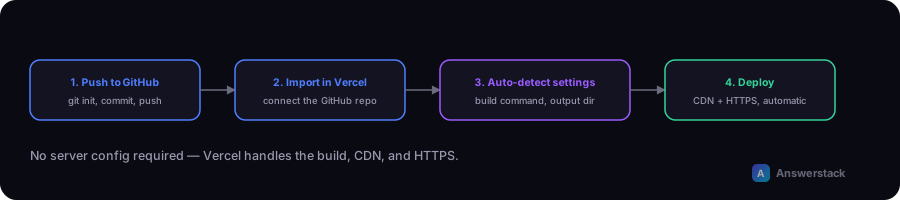
Deploying a Next.js site to Vercel's free tier takes four steps: push the project to GitHub, import it in Vercel, let it auto-detect the Next.js build settings, and deploy — Vercel handles the build, CDN, and HTTPS automatically.
Step 1: Push your project to GitHub
git init
git add .
git commit -m "Initial commit"
Create a new repository on GitHub, then:
git remote add origin https://github.com/your-username/your-repo.git
git branch -M main
git push -u origin main
Step 2: Create a Vercel account and import the project
- Go to Vercel and sign up (a free account is enough to start — no credit card required).
- Connect your GitHub account when prompted.
- Click "Import Project" and select your repository.
Step 3: Configure the project (usually automatic)
Vercel auto-detects Next.js projects and sets the correct build command (next build) and output settings automatically. You typically only need to:
- Confirm the framework preset shows "Next.js"
- Add any environment variables your app needs (API keys, site URL) under Project Settings → Environment Variables
- Leave the root directory as-is unless your Next.js app lives in a subfolder of the repo
Step 4: Deploy
Click "Deploy." Vercel builds the project and, within a minute or two for most sites, gives you a live URL on a free your-project.vercel.app subdomain — no domain purchase required to get started, matching a genuinely $0 launch.
What happens on every future push
Once connected, Vercel automatically:
- Builds and deploys a preview URL for every pull request/branch, so you can review changes before merging
- Builds and deploys to production automatically when you push to your main branch
- Handles HTTPS certificates automatically
Adding a custom domain later
When you're ready to move off the free subdomain:
- Go to Project Settings → Domains
- Add your domain
- Update your domain's DNS records as instructed (usually an A record or CNAME)
- Vercel provisions HTTPS automatically once DNS propagates
There's no need to buy a domain before this step — validate the project on the free subdomain first, per a zero-budget launch approach.
Common first-deploy issues
| Issue | Likely cause |
|---|---|
| Build fails | Check the build log for a TypeScript or dependency error; reproduce locally with npm run build |
| Environment variable missing in production | Env vars must be added in Vercel project settings, not just your local .env file |
| 404 on a page that works locally | Check the file is in the correct app/ route path and exported correctly |
| Images not optimizing | Confirm you're using next/image, and that external image domains are allowlisted in next.config if applicable |
Free tier limits worth knowing
Vercel's free (Hobby) tier is generous for early-stage sites but includes limits on bandwidth, build minutes, and serverless function execution intended for personal/non-commercial use — review current limits on Vercel's pricing page before scaling traffic significantly, and budget for a paid plan once the site generates meaningful revenue or traffic.