Adding an AI chatbot to a website has three real phases: preparing the knowledge it will answer from, choosing and configuring a platform (or building custom), and embedding + testing the widget. Most of the actual work is in phase one.
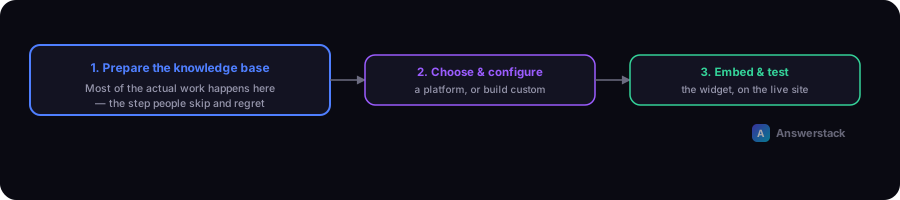
Phase 1: Prepare the knowledge base
This is the step people skip and later regret. An AI chatbot is only as good as what it can retrieve to answer from.
- Gather your source content — help docs, FAQ pages, pricing pages, policies, product descriptions.
- Clean it up — remove outdated info, contradictions, and duplicate answers to the same question.
- Fill obvious gaps — write direct answers for your top 20–30 support questions if they don't already exist as clear text somewhere.
- Decide what it should never answer — pricing exceptions, legal questions, anything requiring a human — and plan an escalation path for those.
Phase 2: Choose your approach
| Approach | Best for | Trade-off |
|---|---|---|
| No-code platform (e.g. Intercom Fin, Chatbase, Crisp AI) | Fastest to launch, no dev resources | Less control, ongoing subscription cost |
| Framework + hosted API (e.g. Next.js + an LLM API) | Full control, custom UX, integrates deeply with your stack | Requires development time |
| Open-source self-hosted | Full control, no per-seat SaaS fee | Requires infrastructure and maintenance |
For most small businesses, a no-code platform is the fastest path to validating whether a chatbot is worth the investment before building something custom — see How to Build an AI Chatbot if you outgrow it.
Phase 3: Configure the bot
Regardless of platform, configure:
- Knowledge source connection — point it at your cleaned-up docs/FAQ (phase 1).
- Tone and persona instructions — how formal, how long should answers be, should it use your product's terminology.
- Escalation rule — when should it hand off to a human or show a contact form (low confidence, specific keywords like "refund" or "cancel", or after N unclear exchanges)?
- Guardrails — topics it should decline to answer, and how it should decline.
Phase 4: Embed and test
- Add the widget script/component to your site (usually a
<script>tag or a component if building custom). - Test with your actual top support questions — not just "hi, what do you do."
- Test edge cases: questions it shouldn't know, off-topic questions, attempts to get it to ignore its instructions.
- Check mobile rendering — chat widgets are easy to get wrong on small screens.
- Confirm the escalation path actually works end to end.
A minimal custom embed pattern (Next.js)
If building custom rather than using a no-code platform, a minimal client-side widget component looks like this:
"use client";
import { useState } from "react";

export function ChatWidget() {
  const [messages, setMessages] = useState<{ role: string; content: string }[]>([]);
  const [input, setInput] = useState("");

  async function sendMessage() {
    const next = [...messages, { role: "user", content: input }];
    setMessages(next);
    setInput("");

    const res = await fetch("/api/chat", {
      method: "POST",
      body: JSON.stringify({ messages: next }),
    });
    const data = await res.json();
    setMessages([...next, { role: "assistant", content: data.reply }]);
  }

  return (
    <div className="chat-widget">
      {messages.map((m, i) => (
        <p key={i}>{m.content}</p>
      ))}
      <input value={input} onChange={(e) => setInput(e.target.value)} />
      <button onClick={sendMessage}>Send</button>
    </div>
  );
}
The /api/chat route is where you'd call your model provider and inject retrieved knowledge-base content into the prompt. See Building an AI Chatbot Interface With Next.js for the full pattern.
Launch checklist
- Knowledge base reviewed for accuracy and gaps
- Tone and escalation rules configured
- Tested with real historical support questions
- Tested with off-topic and adversarial input
- Mobile layout checked
- Analytics/logging in place to review real conversations after launch